It’s been over a year now since I started getting into homelabbing more seriously. One of the biggest questions I faced from day one was how I would access my homelab remotely. I had considered something like Tailscale, which basically does everything for you. And to be honest, for most people, they probably provide one of the best options at the time of writing this; the connections between your Tailscale nodes (e.g., home and laptop) are end-to-end encrypted (though the key distribution does go through their coordination servers), they use WireGuard, and well, a lot of people use them. However, if you are like me, you will probably be bugged by Tailscale being a big enterprise, parts of their server code being closed source, and those coordination servers playing a crucial role. You will probably not like being dependent on their infrastructure. You will want to instead build your own infrastructure. Infrastructure that you will also be dependent on. Infrastructure that you will also have to maintain now, of course. But at least now you are not dependent on that enterprise.
So I got started on solving the remote access problem with a more custom solution. Simply speaking, one of the main issues with a homelab is that it is, well, at home, meaning that it is generally not reachable via the internet. One solution is to port forward and expose your home network to the internet that way. However, for me that was off the table due to security concerns. An often suggested alternative is to use a remote server (a VPS) as a relay or hub. That is what I settled on.
I opted for WireGuard, which allows you to easily create a virtual network. WireGuard, in case you didn’t know, is a VPN protocol/implementation. Below you can see a simple illustration of how WireGuard can be used. Essentially the laptop (could be any device) and homelab each initiate a connection to the VPS that runs a WireGuard server. Two WireGuard tunnels are created. This then enables the laptop to send traffic to the homelab (via the VPS).

This will work great for most people. All major operating systems support a WireGuard connection. Great! You can now access your homelab from anywhere, from a laptop or a phone.
However, this brings along a caveat. The VPS can read all the unencrypted traffic in transit (of course TLS/SSL is uneffected). Essentially with WireGuard, the traffic is only encrypted within a WireGuard tunnel, but of course there is no direct tunnel between the homelab and the laptop (as the diagram shows). An obvious solution is to instead directly connect from the laptop to the homelab; however, this would again require port forwarding on your home network, as that requires your homelab to be accessible via the internet. (A WireGuard connection requires initialization from one end, and that requires the other end to be accessible.) A workaround would be to use the VPS as a simple relay server. Below you can see a simple illustration. Basically the Homelab initiates a connection to the VPS and creates a tunnel: the “Outer Tunnel.” There now is a virtual network that allows the VPS to reach the Homelab. Further using some firewall rules, the VPS forwards any WireGuard traffic coming in. A direct tunnel to the homelab is created: the “Data Tunnel.” (to distinguish between the outer and inner/data WireGuard traffic, we can simply have them operate on different ports)
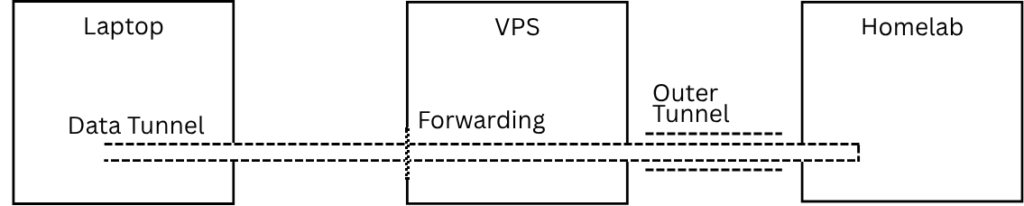
This would then allow the laptop to reach the homelab. Below are the commands to activate this forwarding using iptables. Basically all traffic coming in on port 51821 is forwarded to 10.200.200.2, which is the IP of the Homelab within the “outer” WireGuard network.
sudo iptables -t nat -A PREROUTING -p udp --dport 51821 -j DNAT --to-destination 10.200.200.2:51821
sudo iptables -t nat -A POSTROUTING -s -d 10.200.200.2 -p udp --dport 51821 -j MASQUERADE
However, that way literally all traffic on that port is blindly forwarded to the homelab. The VPS has no way of checking if the incoming WireGuard traffic is legitimate or not – it just forwards it all. Which also comes with risks; basically, it exposes your homelab similarly to how port forwarding does.
Nevertheless, a solution is actually quite straightforward. With one WireGuard network initiated via a VPS the way described initially, so with both the Laptop and Homelab initiating a connection to the VPS, you can (on non-phone operating systems) simply create a WireGuard tunnel within this network. Meaning a connection from the laptop to the homelab. Essentially laying a single “inner” tunnel through the existing two “outer” tunnels.

The beauty of this is that your homelab is inaccessible via the internet – there is no port open leading directly to the homelab. No blind forwarding. And at the same time your entire traffic is end-to-end encrypted with the VPS only ever seeing the encrypted inner WireGuard traffic.
But I soon ran into a new problem. The concept of layering WireGuard tunnels doesn’t work with Android, at least not with non-rooted Android. (For iOS, I am unsure how this is.) Let’s get a bit more technical here. In WireGuard terms, every remote endpoint you connect to is a peer. You can configure several peers on one system, and it will hold a separate connection to each. Now Android generally only lets you run one active VPN at a time. WireGuard makes the most of this: a single one can be connected to multiple peers, meaning Android does actually also support multiple tunnels. But the way routing is handled in Android does not allow the layering of these tunnels. Damn checkmate, I thought.
Nevertheless, I soon came across an at least temporary solution. I figured I could actually use the relay concept described earlier. However, instead of blindly forwarding all traffic, I would just forward specific traffic that comes from a whitelisted IP. That would then allow Android to connect to the homelab directly as long as its IP is whitelisted. In case it wasn’t totally clear, there still is an outer tunnel between the homelab and VPS that is initiated via the homelab. The forwarded traffic coming from the laptop, or in this case phone, is then forwarded via this tunnel to reach the homelab. I found out about the concept of port knocking. Essentially, port knocking allows a certain sequence of UDP or TCP requests to different ports to act as a means of authorization that then triggers a certain action. In my case the action is to forward traffic to my homelab for a specific time period. I set up knockd, a daemon enabling port knocking on a server, and actually used it for some time. But soon I was annoyed by always having to initiate the port knocking once the IP address on my Android phone changed. Automation of this would be possible, but I didn’t find any open-source automation apps for Android I was happy with. Also, port knocking is not the safest, especially when using a static sequence. That static sequence can easily be snooped by some basic network analysis, allowing an attacker to then simply replay it.
I figure it was primarily the annoyance that led me to have a novel idea for solving this: What if I just use a WireGuard connection to replace port knocking as a means of authorization? That connection being established could trigger the traffic forwarding on the VPS. As mentioned, Android does support simultaneous connections to multiple peers, just not layering. So I could just initiate one connection to the VPS and have the VPS then allow forwarding a second connection to the homelab — both of which come from Android. So basically replacing port knocking with a WireGuard connection – so basically “WireGuard knocking”. Below you can see a simple illustration. The “Signal Tunnel” is the initial WireGuard connection Android initiates to the VPS. The “Data Tunnel” is the second WireGuard connection (forwarded via the VPS) — also from Android, but addressed to the homelab. With the VPS only allowing the forwarding once it sees the established “Signal Tunnel”.
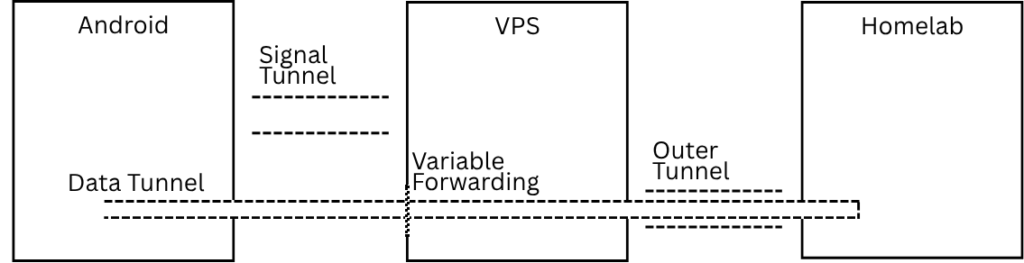
Via the “Data Tunnel” all communication between the homelab and android can happen, and that data is now end-to-end encrypted. This is actually quite secure as WireGuard is a pretty strong means of authorization in this context, especially compared to port knocking. I soon implemented my idea with some simple Go code, feel free to check it out!
Now, this is not perfect. I realize that this is somewhat hacky. And also, it’s important to mention that you are often not the only person with a specific IP. In some cases, thousands of people share one IP address. But in the end the worst they can do is try to establish a WireGuard connection — and it’ll fail without the right key. WireGuard also drops these unauthenticated packets (no reply, no error), so people will not even know if they hit the correct port. And that, I consider a lower-risk issue; however, I am happy to someday find a better solution to also overcome it. But for now, this fares well enough.